gws: Google's New CLI That Puts Your Entire Workspace Into Your Agentic Workflows
A hands-on first look at gws, Google's new Workspace CLI. Covers Windows setup gotchas, MCP server integration with Claude Code, and practical agentic workflow patterns for Drive, Gmail, and Calendar.
I spend a lot of time building agentic systems — tools that let AI work autonomously on real tasks, not just answer questions. And one of the persistent gaps has always been Google Workspace. My Drive files, Gmail inbox, Calendar events — they're all sitting there, but wiring them into an agentic workflow meant OAuth boilerplate, API client setup, and a lot of glue code every single time.
Then Google Workspace dropped gws — a single CLI that covers Drive, Gmail, Calendar, Sheets, Docs, Slides, Tasks, and more. It launched with an MCP server built in. I installed it the same day and spent a few hours finding out where it shines and where the rough edges are. Here's what I found.

The AI Augmented Engineer: Software Development 2026-2030: A Practical Guide to Thriving in the Age of AI-Native Development
By 2030, 0% of IT work will be done without AI. Data-backed career roadmap for software engineers. No hype, no doom. Practical strategies that work.
Learn MoreWhat gws Actually Is
gws is a command-line tool written in Rust that wraps the entire Google Workspace API surface. The interesting architectural decision: it doesn't ship a static list of commands. It reads Google's own Discovery Service at runtime and builds its command tree dynamically. That means when Google adds a new API endpoint, gws picks it up automatically — no waiting for a package update.
It's pre-1.0 (currently v0.3.4), actively developed, and the README is upfront about breaking changes. That's fine. This is the kind of tool you want to get in front of early.
Install it with:
npm install -g @googleworkspace/cli
The Setup: Honest Assessment
I'll be straight with you — setup on Windows is not smooth yet. The README suggests starting with gws auth setup, which automates GCP project creation using the gcloud CLI. In practice, even after installing gcloud and getting it on PATH, gws couldn't find it. The issue is a known Windows quirk: Rust binaries don't resolve .cmd wrapper executables the same way the shell does, and gcloud on Windows ships as gcloud.cmd.
After trying the gcloud path for a while, I bypassed it entirely and went the manual OAuth route. Here's the flow that actually works on Windows:
1. Create an OAuth client in Google Cloud Console
Go to https://console.cloud.google.com/apis/credentials, create a new OAuth 2.0 Client ID, select Desktop app, and download the JSON.
2. Set environment variables instead of dropping the file
The README says to save the file to ~/.config/gws/client_secret.json. On Windows, that path doesn't resolve correctly. Use env vars instead — they work reliably:
set GOOGLE_WORKSPACE_CLI_CLIENT_ID=your-client-id
set GOOGLE_WORKSPACE_CLI_CLIENT_SECRET=your-client-secret
3. Run gws auth login
This opens an interactive terminal scope selector — a nice touch. All nine scopes are pre-selected: Drive, Sheets, Gmail, Calendar, Docs, Slides, Tasks, Cloud Pub/Sub, and Cloud Platform. Hit Enter, complete the browser OAuth flow, and you'll see:
{
  "credentials_file": "C:\\Users\\shane\\AppData\\Roaming\\gws\\credentials.enc",
  "encryption": "AES-256-GCM (key secured by OS Keyring or local `.encryption_key`)",
  "message": "Authentication successful. Encrypted credentials saved.",
  "status": "success"
}
Credentials are encrypted at rest with AES-256-GCM. That's a solid detail for a CLI tool handling OAuth tokens.
4. Enable APIs one by one
When you first hit a service, you'll get a 403 with an accessNotConfigured error — and helpfully, gws prints the exact URL to enable the API:
💡 API not enabled for your GCP project.
   Enable it at: https://console.developers.google.com/apis/api/drive.googleapis.com/overview?project=...
   After enabling, wait a few seconds and retry your command.
This is good UX. You click the link, hit Enable, wait 30 seconds, retry. You'll do this once per service.
The honest verdict on setup: It's a bit of a hassle, especially on Windows. The gws auth setup automation doesn't work unless you're on a Unix environment with gcloud properly configured. Plan for 20-30 minutes of GCP console work on your first run. Once it's done, it's done — and the payoff is significant.
Using gws From the Terminal
Once authenticated, the CLI is clean and consistent. All output is structured JSON. A few commands worth knowing:
List Drive files:
# Note: on Windows CMD, use escaped double quotes — single quotes don't work
gws drive files list --params "{\"pageSize\": 5}"
Paginate through everything:
gws drive files list --params "{\"pageSize\": 100}" --page-all
Introspect any method's schema:
gws schema drive.files.list
Dry run before executing:
gws chat spaces messages create \
  --params "{\"parent\": \"spaces/xyz\"}" \
  --json "{\"text\": \"Deploy complete.\"}" \
  --dry-run
The --dry-run flag is worth highlighting — it lets you preview exactly what request would be sent before committing. Useful when you're scripting against production data.
One Windows-specific note: the shell quoting issue is real. JSON params that work fine in bash with single quotes require escaped double quotes on Windows CMD. Keep that in mind if you're working cross-platform.
The MCP Server: Where It Gets Interesting
This is where gws separates itself from being a useful CLI into something that genuinely changes how agentic workflows operate.
gws mcp -s drive,gmail,calendar
That command starts an MCP server over stdio, exposing Google Workspace APIs as structured tools that any MCP-compatible client can call — Claude Code, Claude Desktop, VS Code, Cursor, whatever you're using.
To wire it into Claude Code, add this to your ~/.claude.json:
{
  "mcpServers": {
    "gws": {
      "command": "gws",
      "args": ["mcp", "-s", "drive,gmail,calendar"],
      "env": {
        "GOOGLE_WORKSPACE_CLI_CLIENT_ID": "your-client-id",
        "GOOGLE_WORKSPACE_CLI_CLIENT_SECRET": "your-client-secret"
      }
    }
  }
}
Note for Claude Code users: there are a couple of places MCP servers can be configured — Claude Desktop has its own config file, and Claude Code uses ~/.claude.json. If you're getting confused about which config controls which, check ~/.claude.json first for Claude Code.
Once connected, you can talk to your Workspace data in plain English from inside an agentic session:
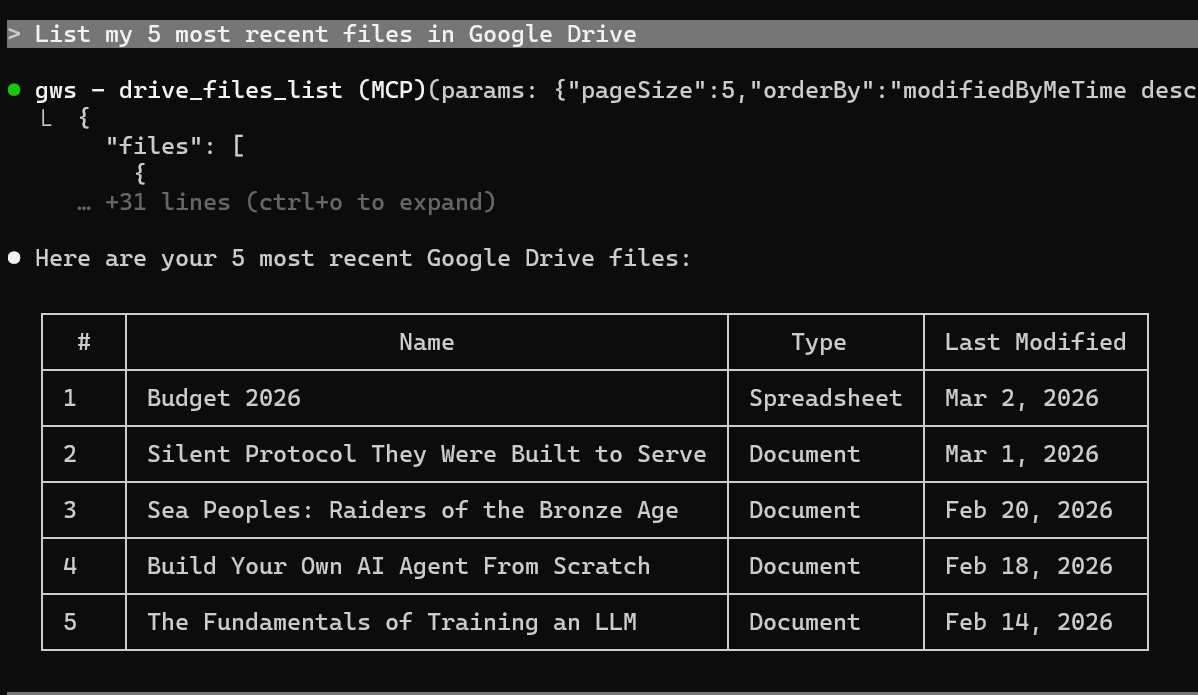
"List my 5 most recent files in Google Drive"
Claude Code calls gws via MCP, which hits the Drive API, and returns a formatted table — file names, types, last modified dates. No manual API calls. No OAuth boilerplate in your agent code. The model figures out the right query parameters (orderBy: modifiedByMeTime desc, q: trashed=false) on its own.
When that first result came back, the utility of this tool clicked immediately. It's not just about convenience — it's about making Google Workspace a first-class participant in your agentic workflows rather than a walled garden you have to write custom integrations for every time.
What This Enables in Agentic Workflows
Here's where the real value starts to emerge. Once gws is wired into your MCP stack alongside tools like azure-devops or digitalocean, you can build agents that operate across your entire work environment. A few concrete examples:
Content pipeline automation An agent that monitors a Google Doc for new article drafts, pulls the content, runs it through a processing pipeline, and pushes it to your CMS — without you ever leaving Claude Code.
Meeting prep agent Pull today's Calendar events, cross-reference with relevant emails in Gmail, and generate a briefing doc — all from a single natural language prompt.
Drive-based project context When starting work on a project, an agent can pull relevant docs from a specific Drive folder to load into context automatically, rather than you hunting for files manually.
Automated reporting Pull data from Sheets, process it, and draft a summary email back through Gmail — a complete read-process-write loop across Workspace, fully automated.
Cross-tool orchestration
Combine gws with your existing MCP servers. For example: pull a bug report from Azure DevOps, check related Drive docs for context, draft a response in a Gmail draft — one agent, three tools, zero manual switching.
Webhook-triggered workflows
Use gws in headless mode (env var credentials) inside a server-side automation. When a file lands in a specific Drive folder, trigger a pipeline. When a Calendar event fires, kick off a build.
The pattern across all of these is the same: gws removes the last major friction point in building agents that work the way you actually work — across email, files, calendar, and documents.
The 100+ Agent Skills
The repo ships over 100 SKILL.md files — one per supported API, plus higher-level workflow helpers and 50 curated recipes covering common patterns in Gmail, Drive, Docs, Calendar, and Sheets. If you're using OpenClaw or another skills-based agent framework:
# Symlink all skills (stays in sync with the repo)
ln -s $(pwd)/skills/gws-* ~/.openclaw/skills/
These skills give your agent pre-built knowledge of how to use gws effectively — which params to pass, how to handle pagination, common error patterns. It's a thoughtful addition that makes the tool genuinely agent-ready, not just agent-compatible.
Rough Edges Worth Knowing
Windows setup friction. gws auth setup doesn't work on Windows due to how Rust resolves PATH executables. Use env vars and the manual OAuth flow instead.
Per-API enablement. Every Google API needs to be manually enabled in your GCP project the first time. It's a one-time thing per API, but expect to click through 5-6 Cloud Console pages during initial setup.
Pre-1.0 instability. The README explicitly warns about breaking changes. This is not a tool to pin in a production system yet without being prepared to update your config.
Tool count. When running gws mcp -s all, you'll expose hundreds of tools to your MCP client. Most clients have limits (typically 50-100 tools). Be selective with -s — only expose the services you actually need.
JSON quoting on Windows. Single-quoted JSON strings in --params don't work on Windows CMD. Always use escaped double quotes: "{\"key\": \"value\"}".
The Verdict
gws is the tool I didn't know I was missing. Google Workspace has always been this frustrating gap in agentic workflows — powerful enough to matter, annoying enough to avoid integrating. This closes that gap.
Setup on Windows takes patience, and the gws auth setup path is broken in that environment. But once you're past it, the MCP server integration with Claude Code is seamless. Seeing your Drive files, Gmail inbox, and Calendar events respond to natural language from inside an agentic session is one of those moments where the potential of the whole stack suddenly becomes concrete.
For agentic developers building on Claude Code or any MCP-compatible environment: this belongs in your stack. Get in early, work around the Windows quirks, and start thinking about what you can build when Workspace is just another tool in your agent's toolkit.
Rating: 4/5 — Rough around the setup edges, exceptional on the vision and execution once running.
Install: npm install -g @googleworkspace/cli
Repo: github.com/googleworkspace/cli
Current version: 0.3.4