How We Built an Instant 3D Action-Figure Generator with OpenAI’s gpt-image-1 API
Learn step-by-step how we built a web app that converts your photo + prompt into blister-pack action-figure art using OpenAI’s new image API.
How We Built an Instant 3D Action-Figure Generator with OpenAI’s gpt-image-1 API
Transform any photo into blister-pack action-figure art in seconds using OpenAI’s gpt-image-1 API—no design skills needed.
At Grizzly Peak Software, we love blending creativity and code to build tools that delight—and our latest side project, Action Figure Generator, is no exception. In this post, you’ll learn how we built a lightweight web app that lets users upload a photo, answer a few form questions, and instantly generate a blister-packed, cartoonish action-figure rendering using OpenAI’s new gpt-image-1 model.

Build Your Own AI Agent From Scratch
Build a complete AI agent from scratch in Python — no frameworks, no hype. 16 chapters covering tools, memory, reasoning, MCP, multi-agent systems & more.
Learn More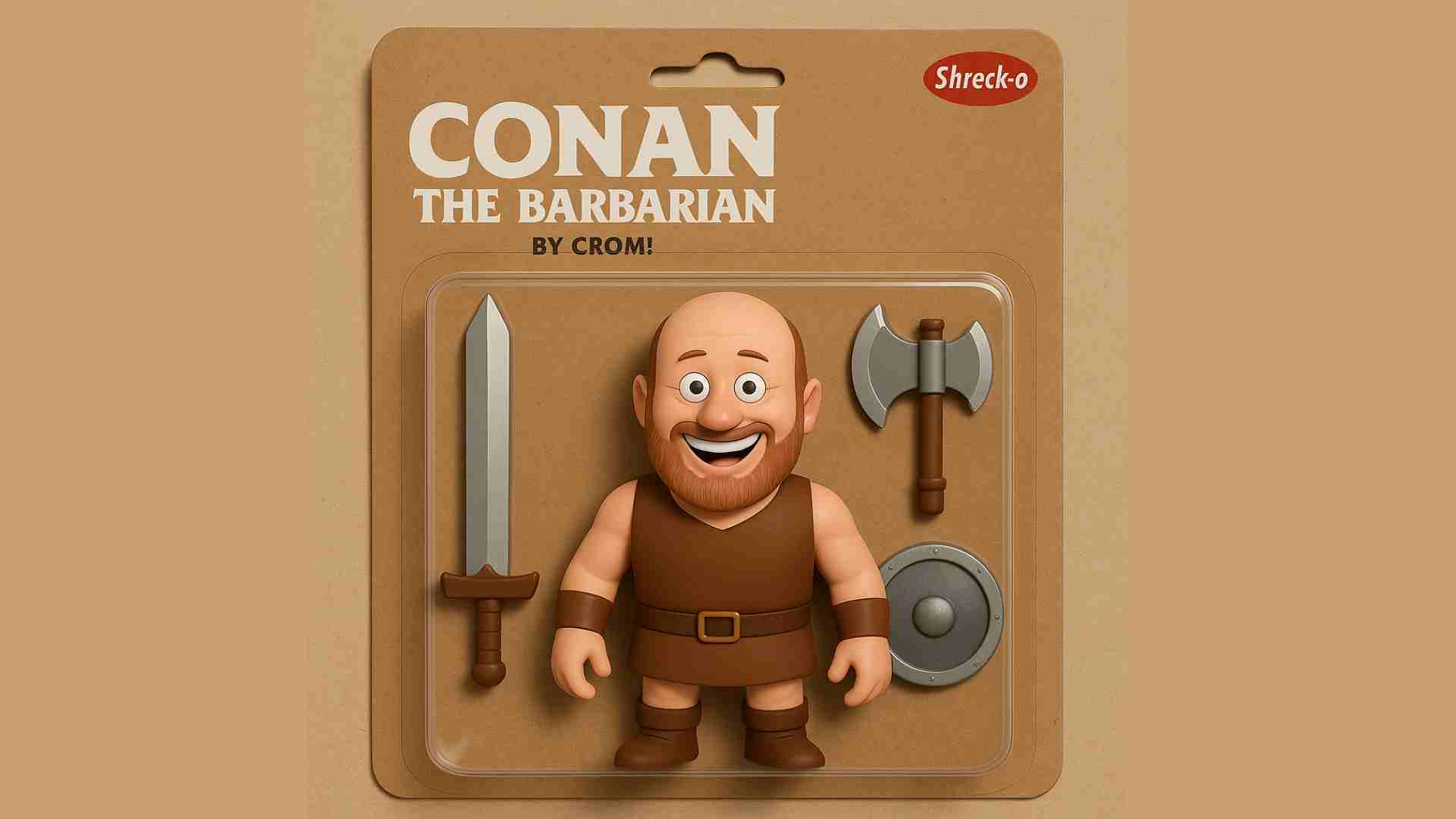
Tweet this:
“I just turned my selfie into a blister-pack action-figure mockup in seconds using #OpenAI’s gpt-image-1 API! 🚀🤖 https://grizzlypeaksoftware.com/articles?id=3uPKI895BoUQk2gfpnHl3Y”
What You’ll Learn
- API Wiring: How to wire up OpenAI’s gpt-image-1 API for edits & generations
- Prompt Engineering: Fine-tune style, fidelity, and toy details
- Architecture Overview: A simple Node.js + Express + Multer stack you can reuse
- Scaling Tips: Caching strategies and async job queues for high volume
Why Build an AI-Driven Image Generator?
Traditional design workflows demand manual asset sourcing, design skills, and endless revisions. By tapping into a powerful image-generation API, you gain:
- Speed: User prompts → polished art in seconds
- Flexibility: Instantly switch styles—anime, watercolor, comic-book, and more
- Scalability: Serve thousands of requests without a full art team
Our action-figure demo focuses on a playful niche—creating 3D toy mockups in blister packaging—but you can adapt the same pattern for greeting cards, banners, game assets, or personalized merchandise.
Architecture Overview
At its core, our stack is intentionally simple and easy to extend:
- Node.js + Express for HTTP handling
- Multer to process optional image uploads
- OpenAI’s
openainpm package for API calls - Static front-end (
index.html) with a responsive two-column layout
1. Server Setup (app.js)
We detect whether a user uploaded a photo. If so, we use images.edit; otherwise, we call images.generate.
const { OpenAI, toFile } = require("openai");
const multer = require("multer");
const express = require("express");

const app = express();
const openai = new OpenAI({ apiKey: process.env.OPENAI_API_KEY });
const upload = multer({ storage: multer.memoryStorage() });

app.post("/action-figure", upload.single("photo"), async (req, res) => {
  const { toyName, tagline, supportingItems, moreInfo } = req.body;
  const basePrompt = `
Make a 3D action figure toy named "${toyName}", displayed in transparent blister packaging.
On the package, show "${toyName}" in large white text and "${tagline}" below.
Include items: ${supportingItems}.
${moreInfo ? `Additional details: ${moreInfo}.` : ""}
Minimalist cardboard background with cute toy style; add the “Shreck-o” logo in the top right.
  `.trim();

  let outputB64;
  if (req.file) {
    // Wrap buffer into a file handle for edits
    const fileHandle = await toFile(req.file.buffer, "input.png", { type: req.file.mimetype });
    const { data: [ editResult ] } = await openai.images.edit({
      model: "gpt-image-1",
      image: fileHandle,
      prompt: basePrompt,
      n: 1,
      size: "1024x1024"
    });
    outputB64 = editResult.b64_json;
    res.json({ image: outputB64, original: req.file.buffer.toString("base64"), photoMime: req.file.mimetype });
  } else {
    const { data: [ genResult ] } = await openai.images.generate({
      model: "gpt-image-1",
      prompt: basePrompt,
      response_format: "b64_json",
      n: 1,
      size: "1024x1024"
    });
    outputB64 = genResult.b64_json;
    res.json({ image: outputB64 });
  }
});
Pro Tip: Always expose an optional “More Info” field—small prompt tweaks can yield dramatically different art styles.
2. Front-End Highlights (index.html)
We keep everything above the fold on desktop with a two-column flexbox. The left panel handles input; the right panel previews both the reference photo and the generated art.
<div class="container">
  <header><h1>Action-Figure Generator</h1></header>
  <main class="flex">
    <aside class="form-panel">
      <form id="figure-form" enctype="multipart/form-data">
        <input name="toyName" placeholder="Toy Name" required />
        <input name="tagline" placeholder="Tagline" required />
        <input name="supportingItems" placeholder="Supporting Items (comma-separated)" required />
        <textarea name="moreInfo" placeholder="Extra details (optional)"></textarea>
        <input type="file" name="photo" accept="image/*" />
        <button type="submit">Generate Figure</button>
      </form>
    </aside>
    <section class="result-panel" id="result">
      <!-- Spinner, preview, and Download button get injected here -->
    </section>
  </main>
</div>
- Animated spinner during generation
- Download button with slugified filename (
toyName_timestamp.png) - Vibrant micro-interactions on buttons and form fields
Lessons Learned & Next Steps
- Prompt Engineering Matters
Small wording changes can shift from “cartoonish” to “hyper-realistic.” - Understand Edits vs. Generations
- Use
images.editfor fidelity to a reference photo. - Use
images.generatefor fully original art.
- Plan for Scale
- Cache recent prompt→image pairs.
- Queue high-volume jobs with Redis or RabbitMQ.
On Our Roadmap
- Preset Galleries: Browse & remix popular templates
- User Accounts: Save and share your creations
- Batch Mode: Upload multiple photos for a full action-figure line in one go
Try It Yourself
- Clone the repo https://github.com/grizzlypeaksoftware/action-figure-generator
- Add your OpenAI API key to
.env - Run:
   npm install
   node app.js
- Open http://localhost:3000 and start generating!
Feel free to fork the repo, open a PR, or tag us on X @PeakGrizzly with your creations. Happy coding and toy-making!
– Shane, Grizzly Peak Software